📁 Collections
Collections are folders where you organize and store your API requests.
They also allow you to define collection-level variables and authentication data that apply to all requests within the collection.
You can create a new collection in multiple ways:
✨ Creating a New Collection
- Via Menu:
File → New → New Collection - Using Keyboard Shortcut:
- Windows/Linux:
Ctrl + N - macOS:
Cmd + N
- Windows/Linux:

In the popup dialog, simply enter a name and an optional description, then click Save. Your new collection will now appear in the Collections panel.
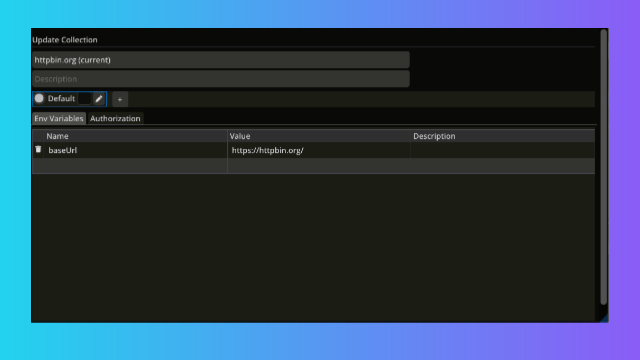
Snapshot: Collection Details Dialog
🌐 Collection-Level Environment Variables
RestIt supports collection-level environment variables, which are shared across all requests within a collection.
All variables belong to a profile, and each profile contains its own set of variables.
👉 To use environment variables, you first need to create a Profile.
🆕 Creating a Profile (Environment)
When creating a new collection:
- Click the ➕ button in the Environment section.
- Enter a profile name (e.g.,
Dev,Production,Staging). - Click Save.
When working with an existing collection:
- Right-click the collection in the sidebar.
- Select
View/Edit. - Create or update profiles as needed.
⚙️ Managing Profiles & Variables
- After creating a profile, you can define variables such as tokens, base URLs, or credentials.
- You can create multiple profiles per collection (e.g.,
Dev,QA,Prod). - Only one profile can be active at a time.
- All requests within the collection automatically use the active profile's variables.
🖱️ Viewing Active Profile Details
When you hover over a collection in the sidebar, a tooltip appears showing:
- The currently selected profile name
- The list of variables defined in that profile
This makes it easy to confirm which profile is active and what values are being applied to your requests at a glance.
🗑️ Deleting a Collection
To delete a collection, click Delete in the collection's options menu.
📤 Importing or Exporting a Collection
For details on importing or exporting collections, see the Import/Export section.